Super Magic Agents 101

Build an AI agent that takes on a complete job on your service board — and starts on its own when a ticket comes in.
What a Super Magic agent is
A Super Magic agent is an AI agent that can take on a complete job in your service board, not just a single task.
Given a problem, an agent can:
• Gather the information it needs
• Take actions across your connected systems
• Follow a set procedure to work the issue
• Start on its own when a triggering event happens somewhere else, using a flow
The four parts of an agent
Every agent is built from four parts. When you understand these, you can describe almost any agent you want.
Part | What it is | Example |
Context | What the agent knows about the situation — the company, the contact, the ticket, the device, and the conversation. | Context is what lets an agent answer "What computer am I using?" with the actual make and model, instead of stopping to ask. |
Tools | The actions an agent can take in other systems. Tools move an agent from giving advice to doing the actual work. | Adding an internal note, pulling device logs from an RMM, or retrieving documentation from IT Glue or Hudu. |
Skills | The procedure an agent follows to complete a specific job. A skill spells out the steps. | For a low server disk space ticket: check the RMM for how much space is left, and if the server is in a cloud environment, create a ticket for the site contact asking approval to expand the disk by 20 GB. |
Triggers | What starts an agent automatically. Instead of a person asking the agent to do something, a trigger kicks it off when a specific event occurs in another system. | A new ticket is created, and the right skill, tools, and context are already in motion before anyone steps in. |
What Super Magic Agents add
Super Magic already gave agents context, tools, and skills across Thread, your PSA, and 10 + Tools
Super Magic Agents adds the final piece — triggers, with flows — and lets you build your own custom agents on that same foundation, connected to 10+ of the most common tools in your MSP stack.
Create an agent
The easiest way to create an agent is to have Super Magic build it for you. You describe the job in plain language, and Super Magic creates the skill, then wires that skill into a flow so it runs automatically.
Step 1 — Describe the agent you want
Open the Super Magic tab and tell Super Magic exactly what you want the agent to do. Be specific about what it should look at, what it should figure out, and where the result should go.
EXAMPLE REQUEST "Create an agent that does ticket intake. It should look at that company’s previous tickets and the workspace tickets overall, determine how the issue was resolved previously and what next steps the tech should take, then add all of those items as an internal note." |
Press Enter, and Super Magic starts building.

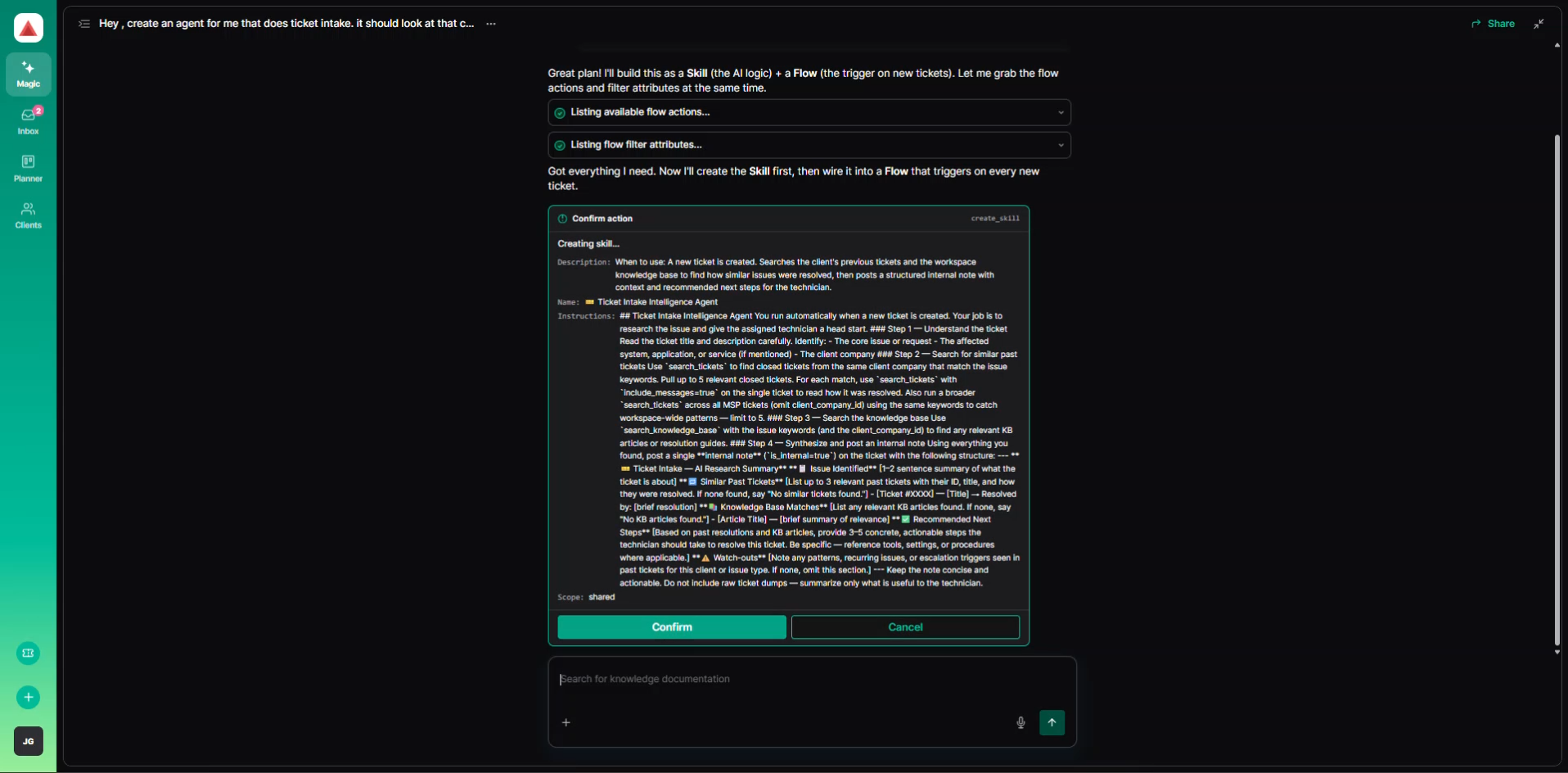
Step 2 — Review and confirm the skill
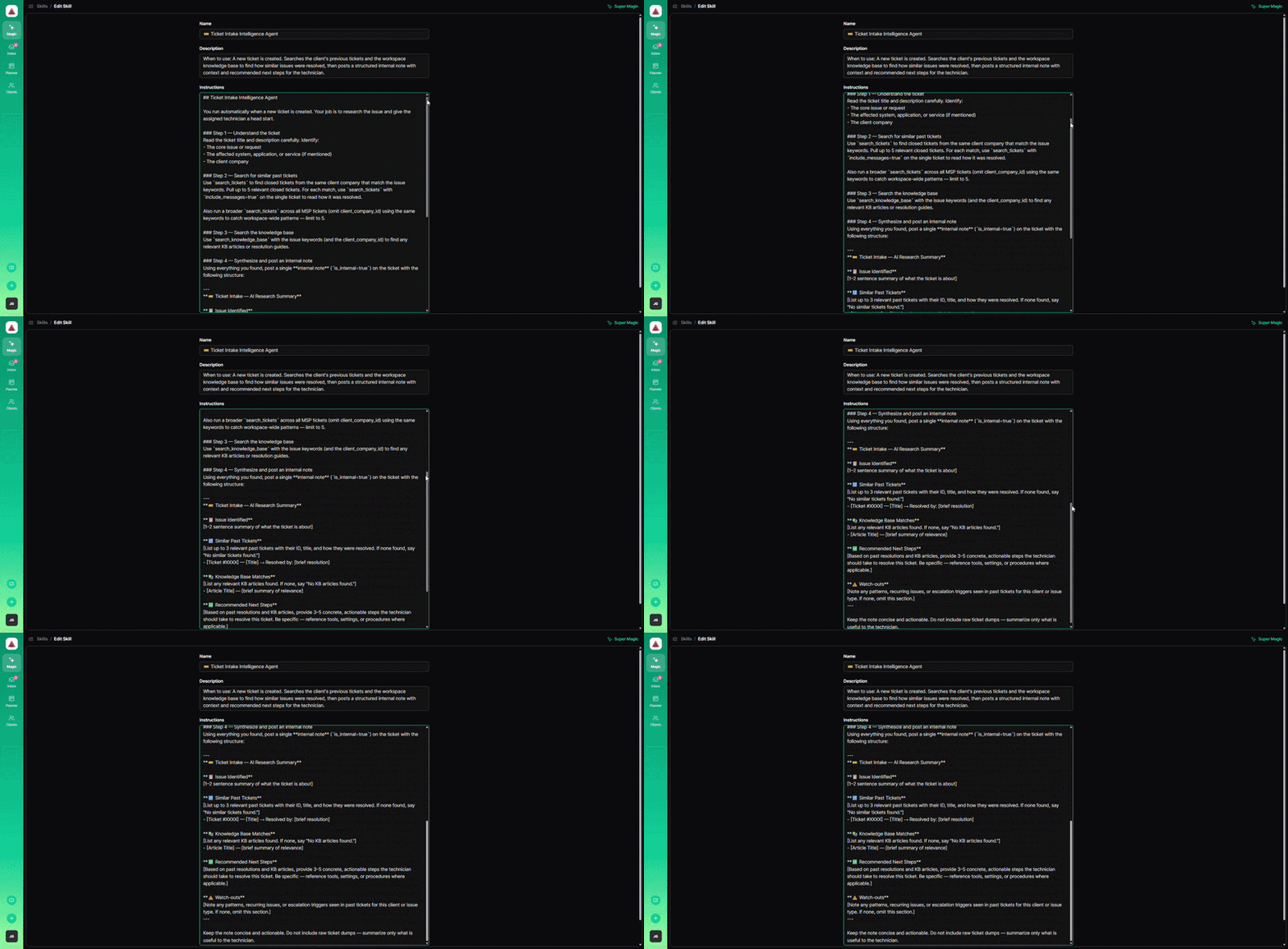
Super Magic first creates the skill — the procedure your agent will follow. Read through the steps it wrote, then confirm.
Step 3 — Review and confirm the flow
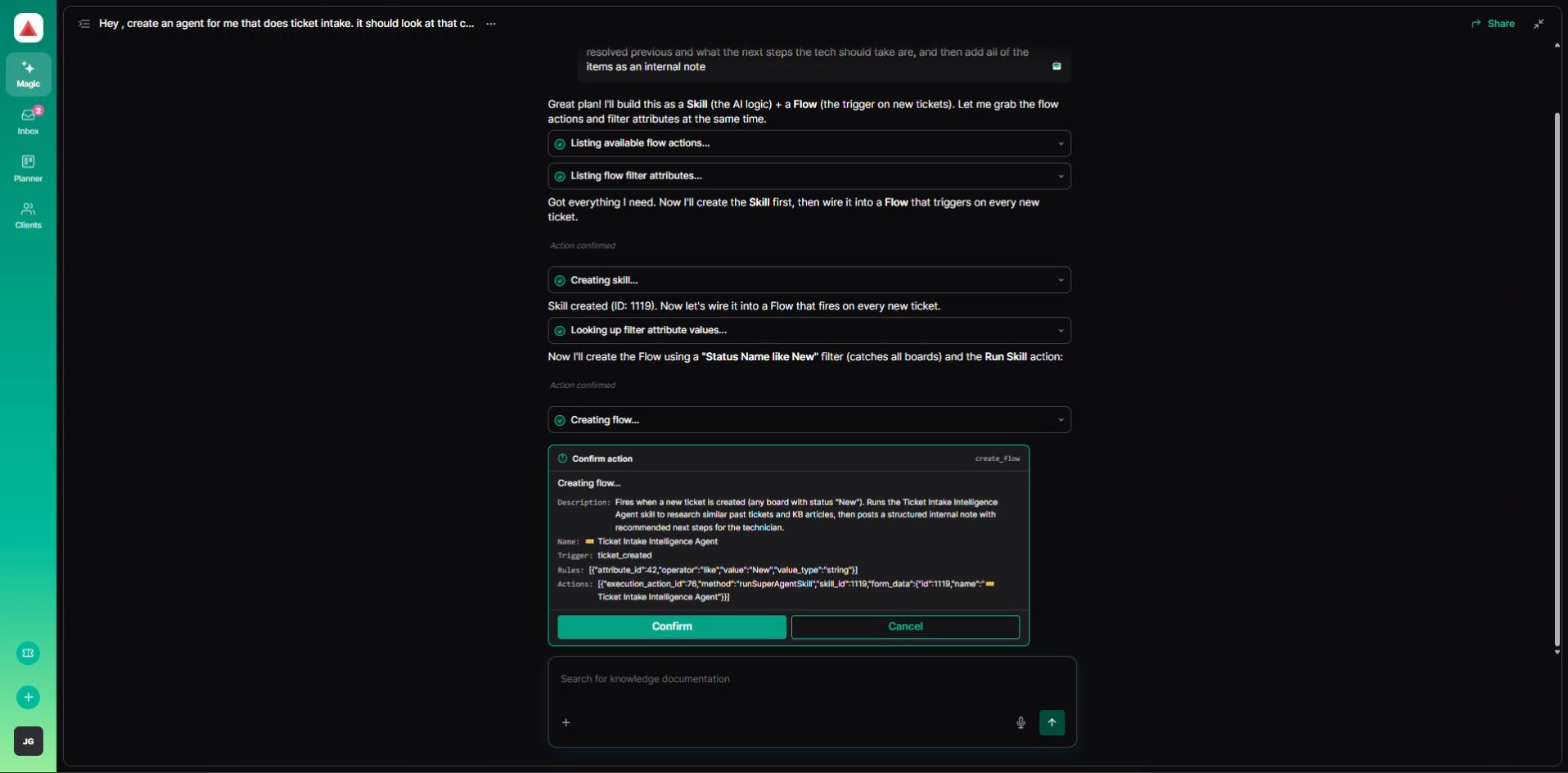
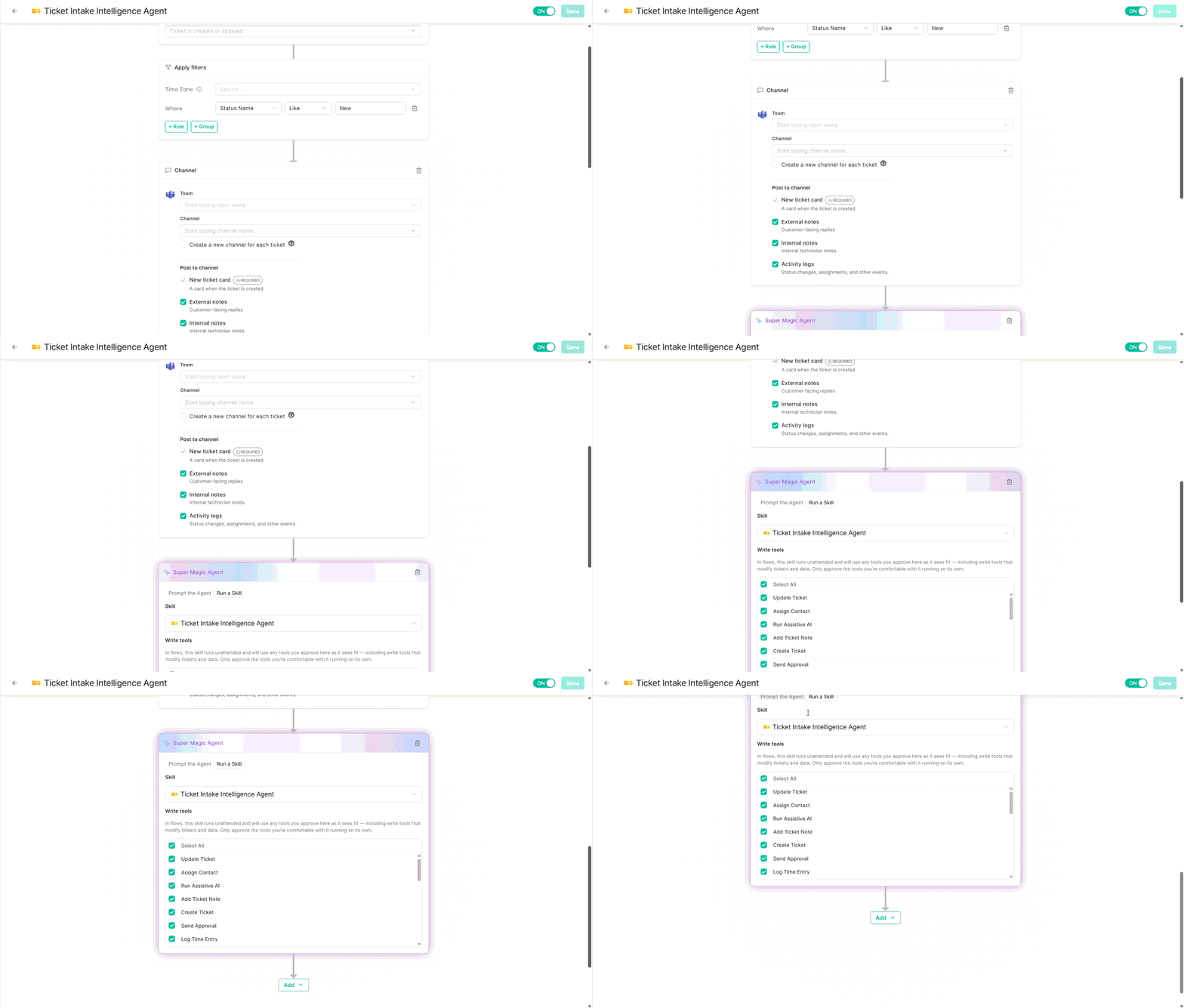
Next, Super Magic wires that skill into a flow, which becomes the agent’s trigger. In this example it builds a flow that runs when a ticket is created or updated, using a status-name filter as a catch-all, followed by a "run skill" action pointing at the skill it just created.
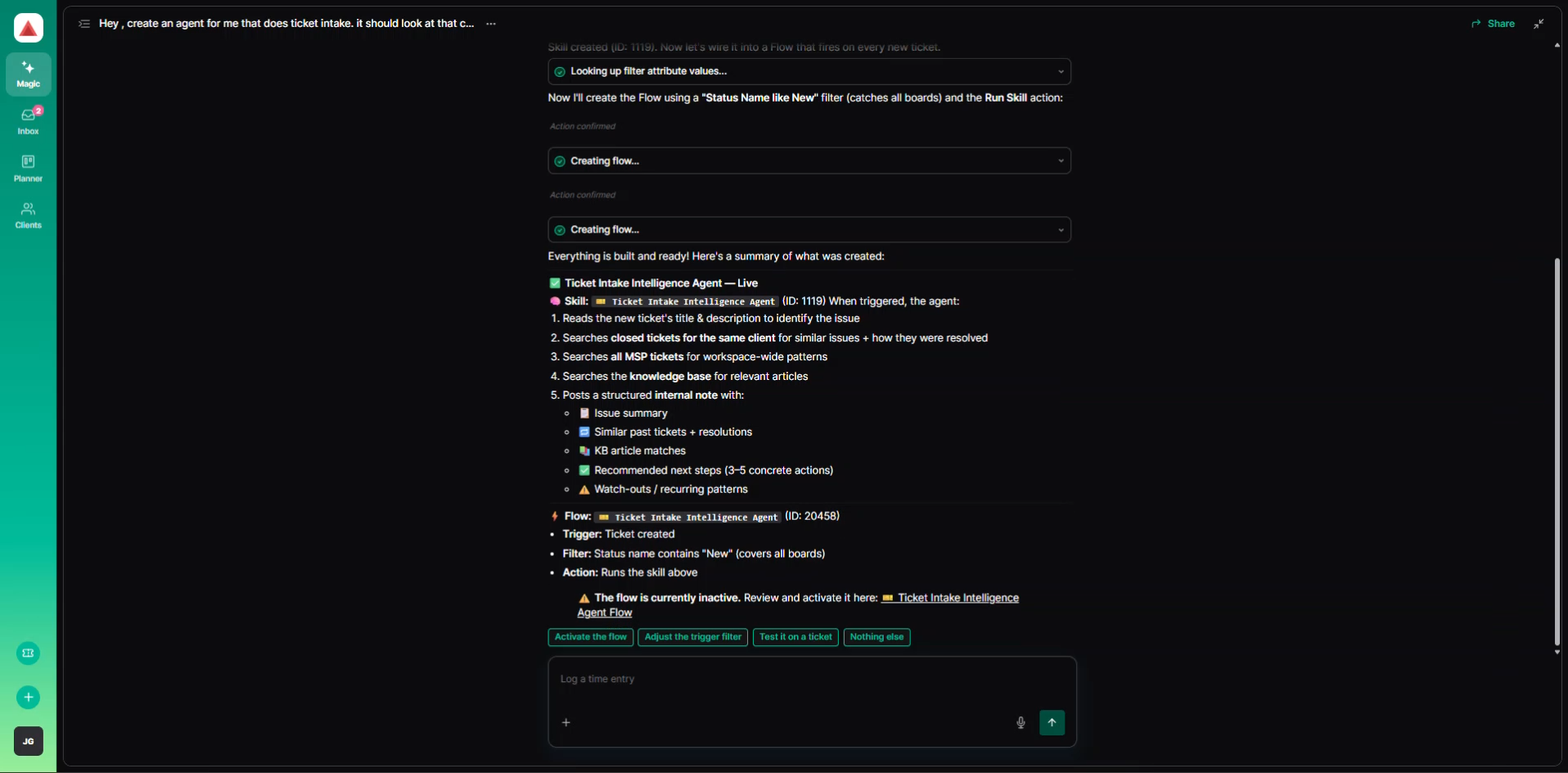
Confirm the flow, and Super Magic confirms the agent has been created.
Step 4 — Select tools, turn it on, and save
Open the agent to review it. You’ll see the flow that was created for you and the Super Magic prompt behind it.
From here:
1. Select the tools the agent needs, so it has access to everything required to do the job.
2. Toggle the agent on.
3. Click Save.
The agent is now active in your workspace.
Test your agent
You can use Super Magic to create a test ticket, so you don’t have to wait for a real one.
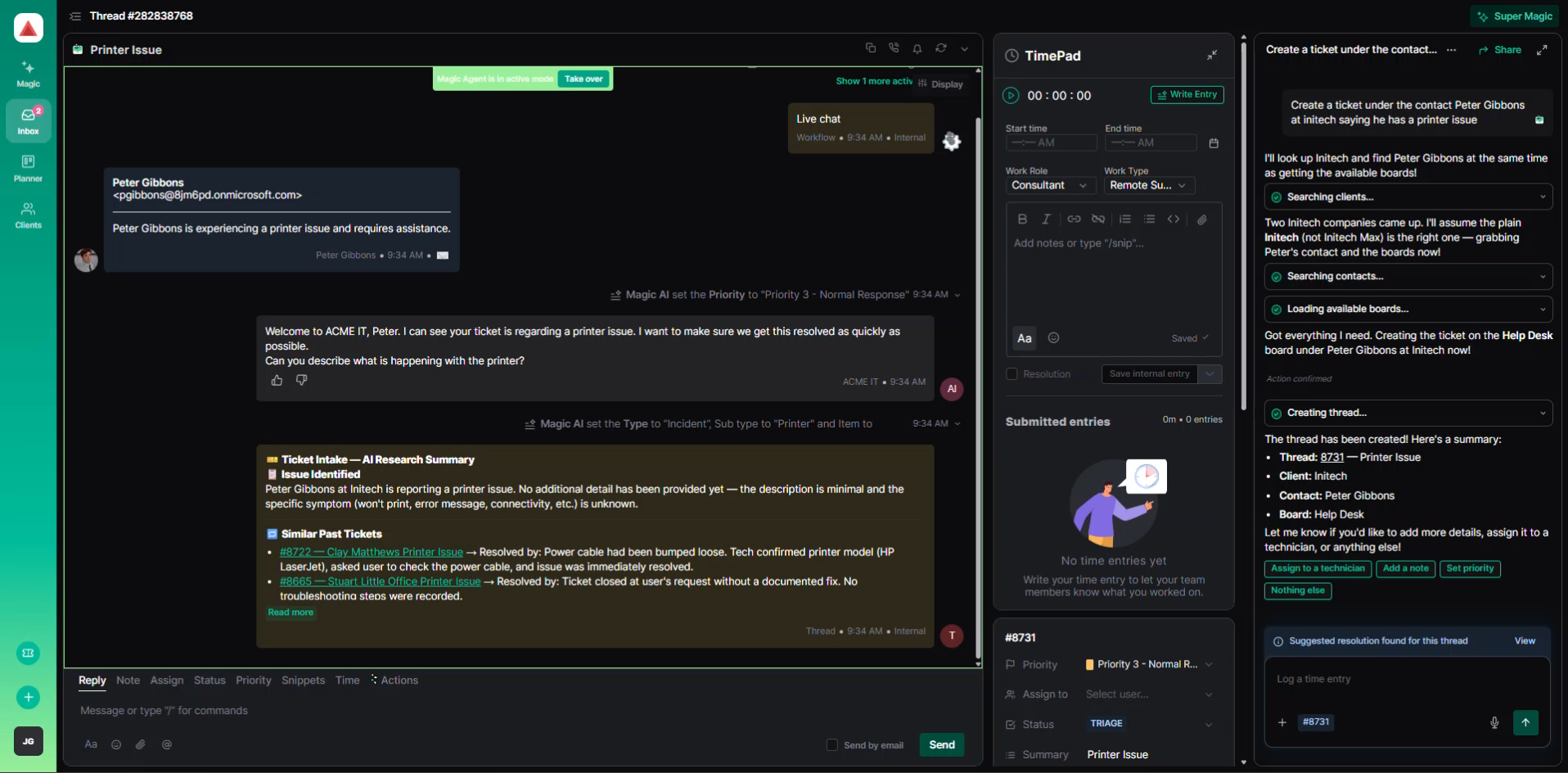
EXAMPLE REQUEST "Create a ticket under the contact Peter Gibbons at Initech, saying he has a printer issue." |
Super Magic drafts the ticket and asks you to confirm the ticket creation. Open the ticket and you’ll see Super Magic working in the background.
What the agent produced
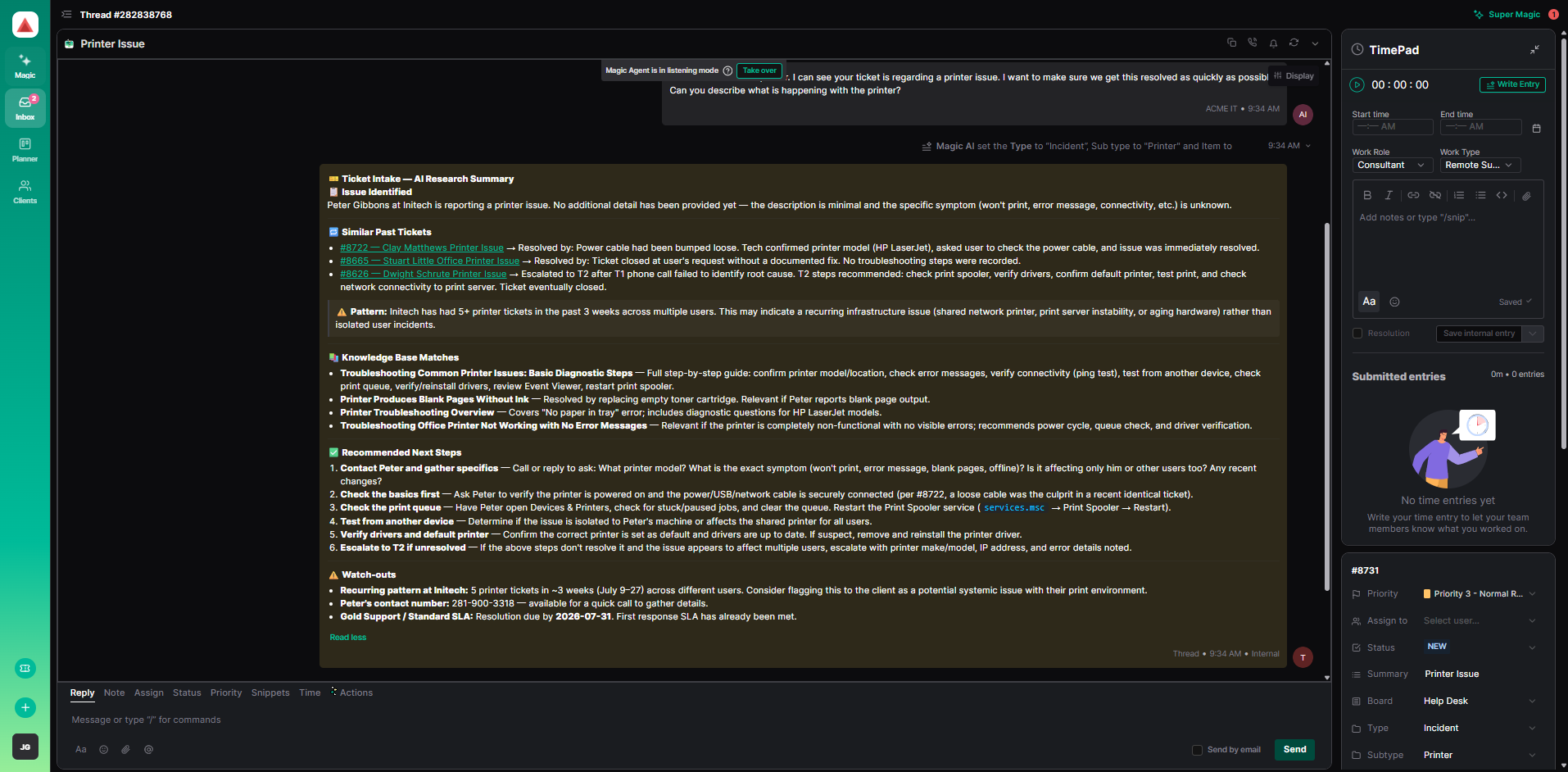
Because the flow was set to trigger on new tickets, the agent ran on its own and posted its findings as an internal note on the ticket — exactly as described in the original request. The note included:
• An AI research summary, with the ticket identified
• Similar past tickets
• Knowledge base matches
• Recommended next steps
• Things to watch out for
Writing a good agent request
Super Magic builds a better agent when your request answers these five questions:
• What is the job? Give it a clear purpose, such as ticket intake.
• What should it look at? Name the data — this company’s previous tickets, workspace tickets overall, knowledge base articles.
• What should it determine? For example, how the issue was resolved previously and what the tech should do next.
• Where should the output go? An internal note, a reply, a new ticket, a status change.
• When should it run? On every new ticket, on a specific status, or only when you ask.
Good to know
• You can build skills and flows manually as well — having Super Magic do the work is simply the fastest path.
• An agent runs based on the parameters you set. In this example the flow was set to trigger on all new tickets, so every new ticket gets a ticket intake summary.
• One agent can cover a range of jobs. Point it at the skills you need and let your flows decide when it runs.
• Review the tool selection before you turn an agent on. Without the right tools, an agent can only advise — it can’t act.
